

Registration is required for any Saudi VAT number that will clear or report invoices through Invopop. It is a prerequisite for the clearance and reporting flow.
Sandbox environments
In sandbox, the Register Party step’s configuration selects which ZATCA portal to onboard against. Production enrollments ignore this and always use the live endpoint.
The two modes target different ZATCA sandbox endpoints and differ mainly in how the OTP is treated:
-
Developer is the lightweight sandbox. ZATCA does not validate the OTP, so the value the supplier types in the onboarding wizard is a dummy.
You can register any party in developer mode, but ZATCA only accepts invoices issued from its fixed test VAT number,
399999999900003. - Simulation mirrors production. The OTP must be a real one-time password the supplier generates from their FATOORA Simulation portal, exactly as they would in production.
In both sandbox modes the supplier still completes the same wizard, only the OTP requirement changes.
How it works
Registration spans two parts: a workflow you run against the party document, and a hosted onboarding wizard the supplier completes to provide the FATOORA OTP.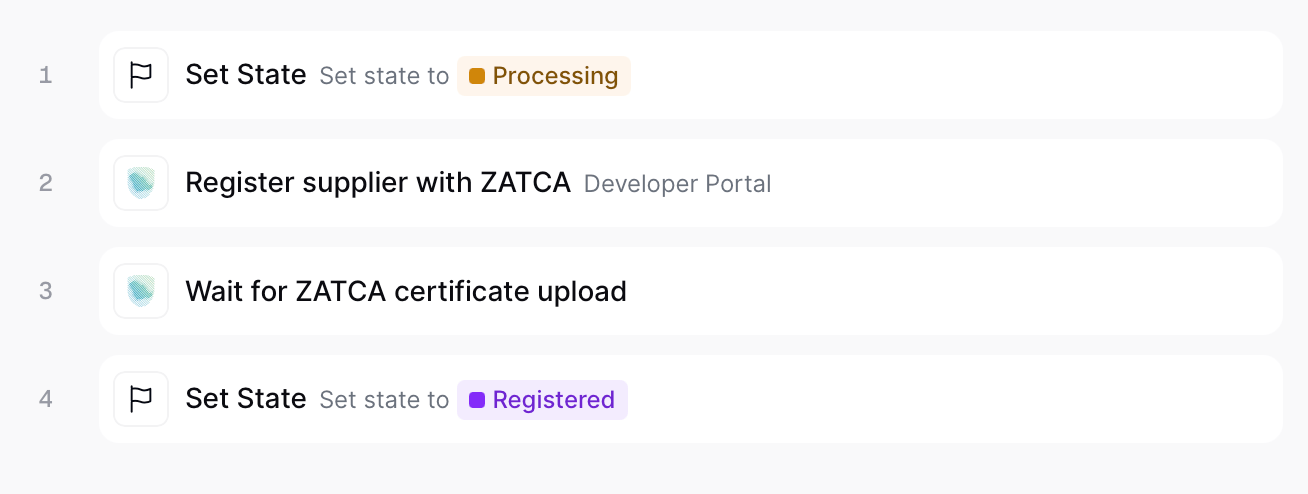
ZATCA register supplier
1
Set State → Processing
Sets the state of the silo entry as “Processing”.
2
Register supplier with ZATCA
Validates the party’s tax ID, supplier identity, and full address, stakes the claim on that VAT number and identity, then publishes a public onboarding link in the meta section of the party. The supplier follows this link to complete the onboarding wizard.
3
Wait for ZATCA certificate upload
Pauses until the supplier uploads the compliance CSID. It will then submit the mandatory compliance sample invoices and swaps the Compliance CSID with the Production CSID.
4
Set State → Registered
Sets the state of the silo entry as “Registered”.
- Template
- Code
ZATCA register party workflow
Publishes the ZATCA onboarding link and provisions the party’s production CSID.
The onboarding wizard
The link published by Register Party provides an onboarding wizard for the supplier to complete:1
Company details
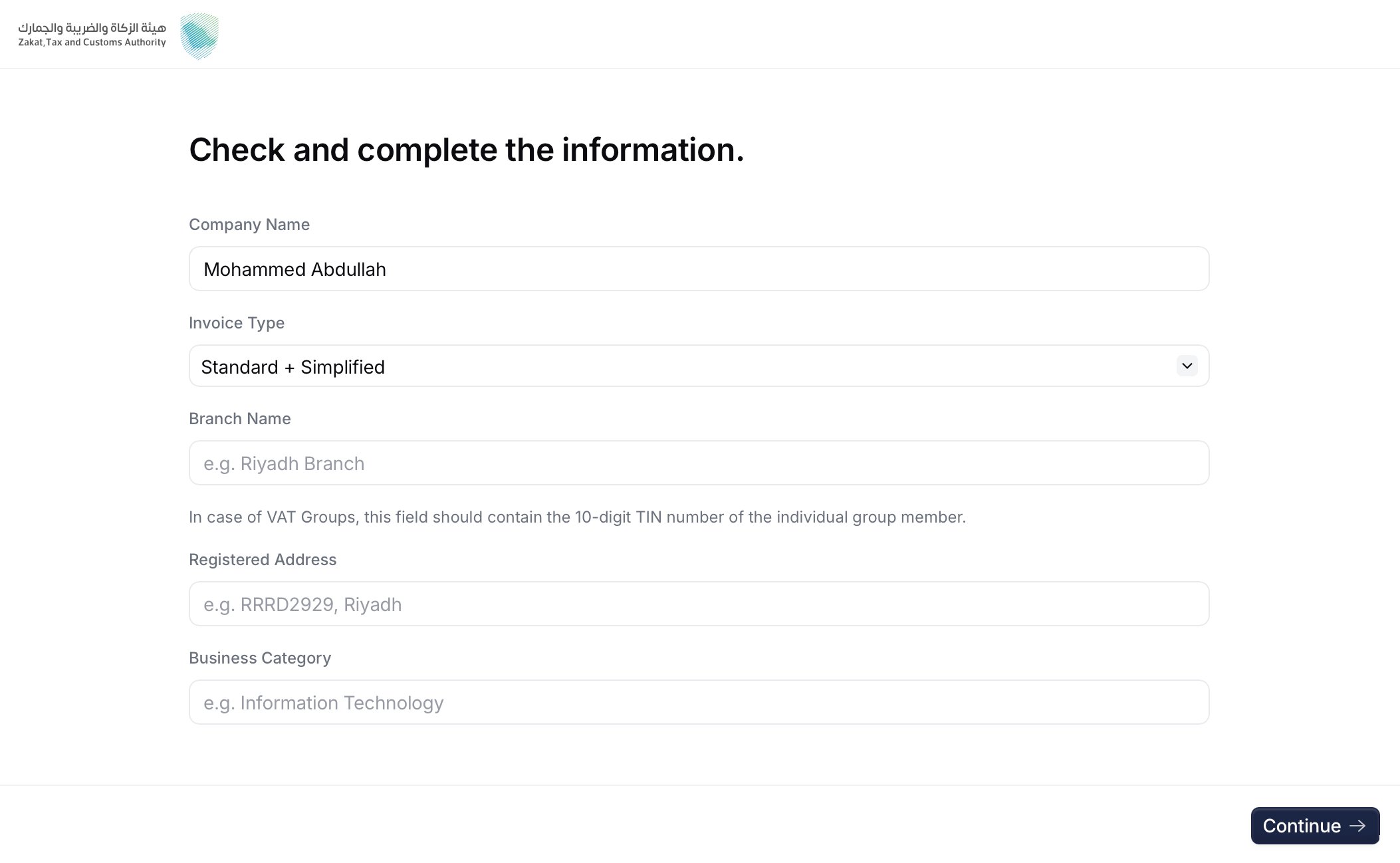
Company details screen
1000 standard, 0100 simplified, or 1100 both), branch name, registered address, and business category. These values feed the certificate request.2
Get the OTP from FATOORA
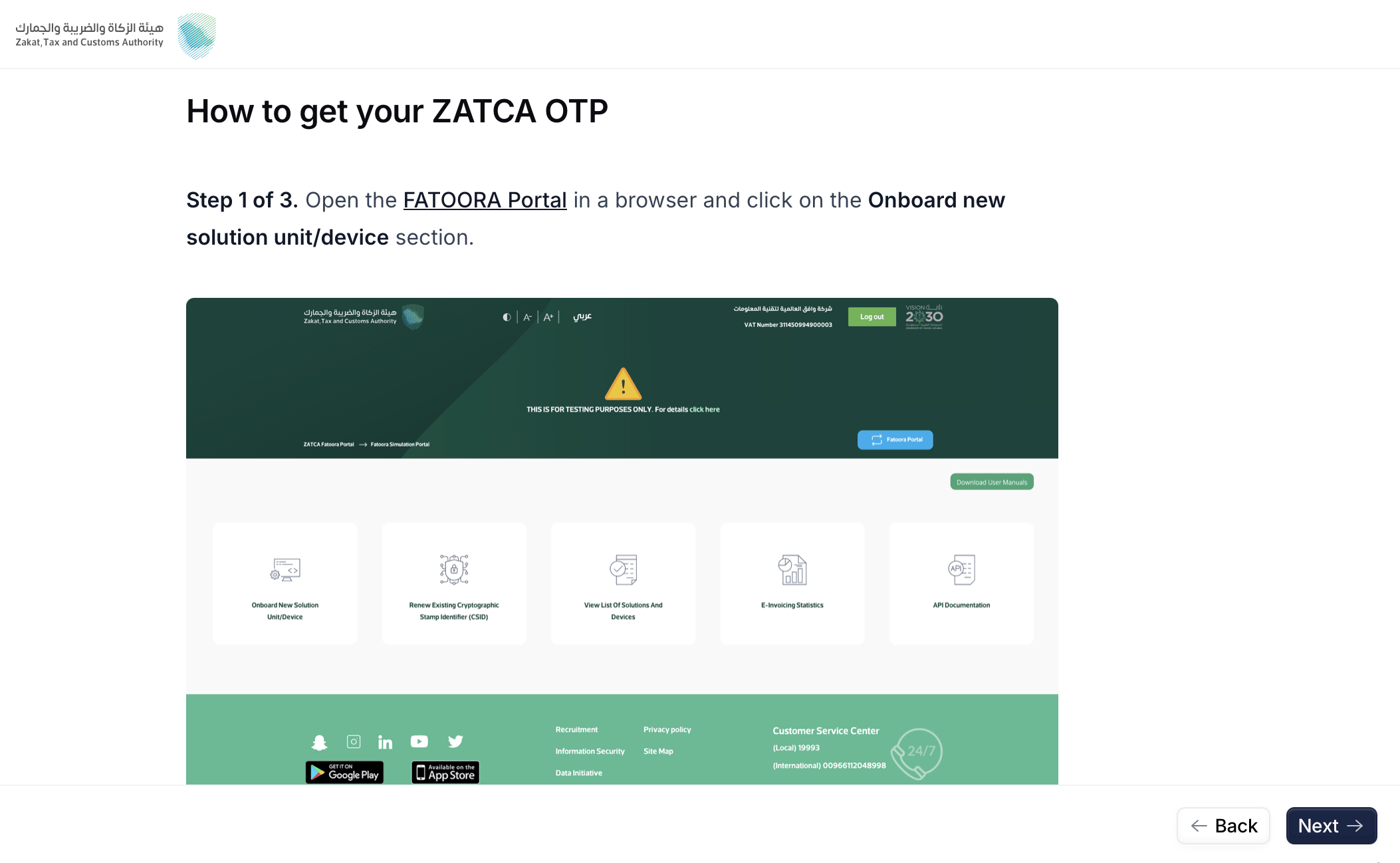
FATOORA instructions screen
3
Enter the OTP
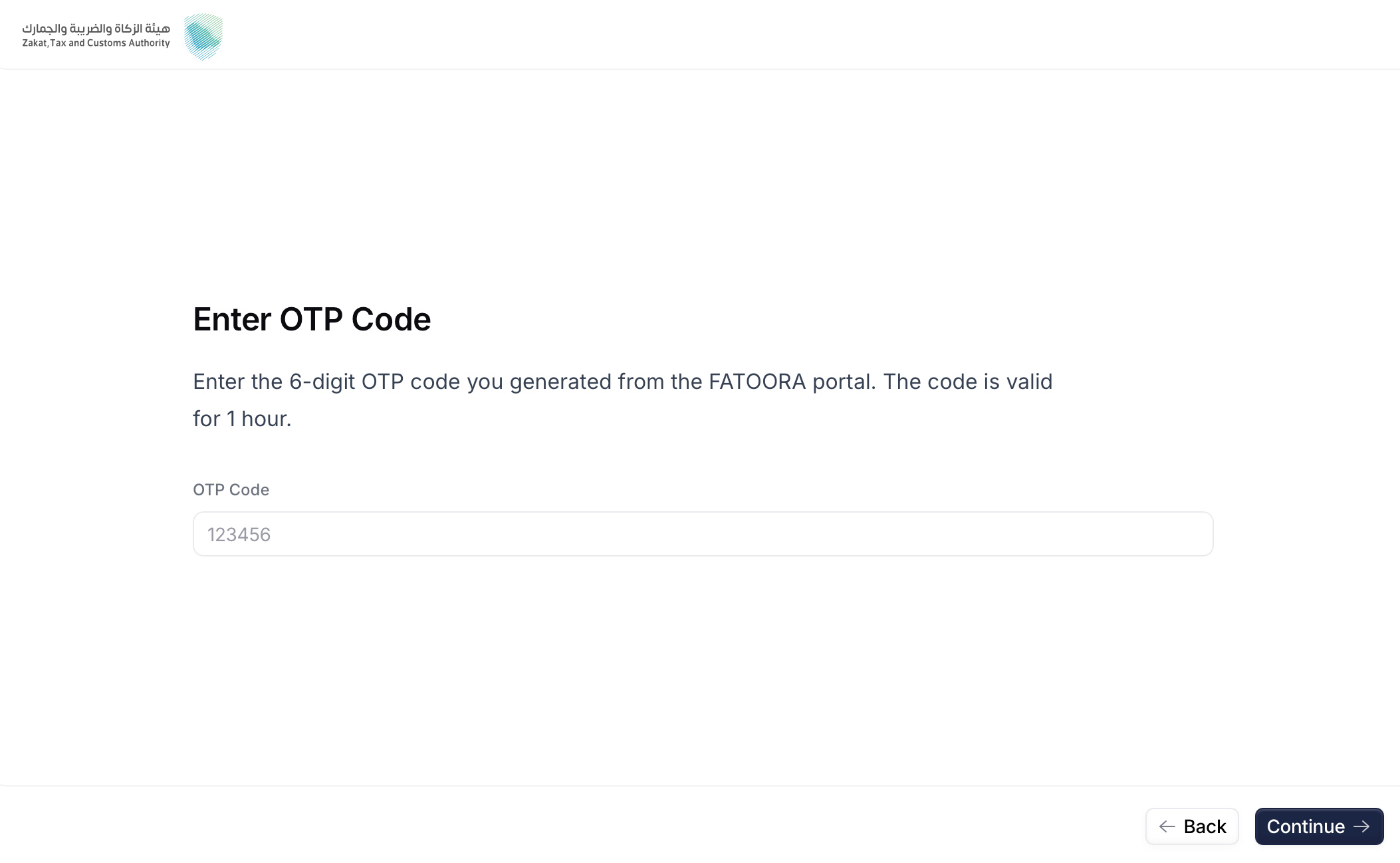
OTP Code screen
4
Confirm details
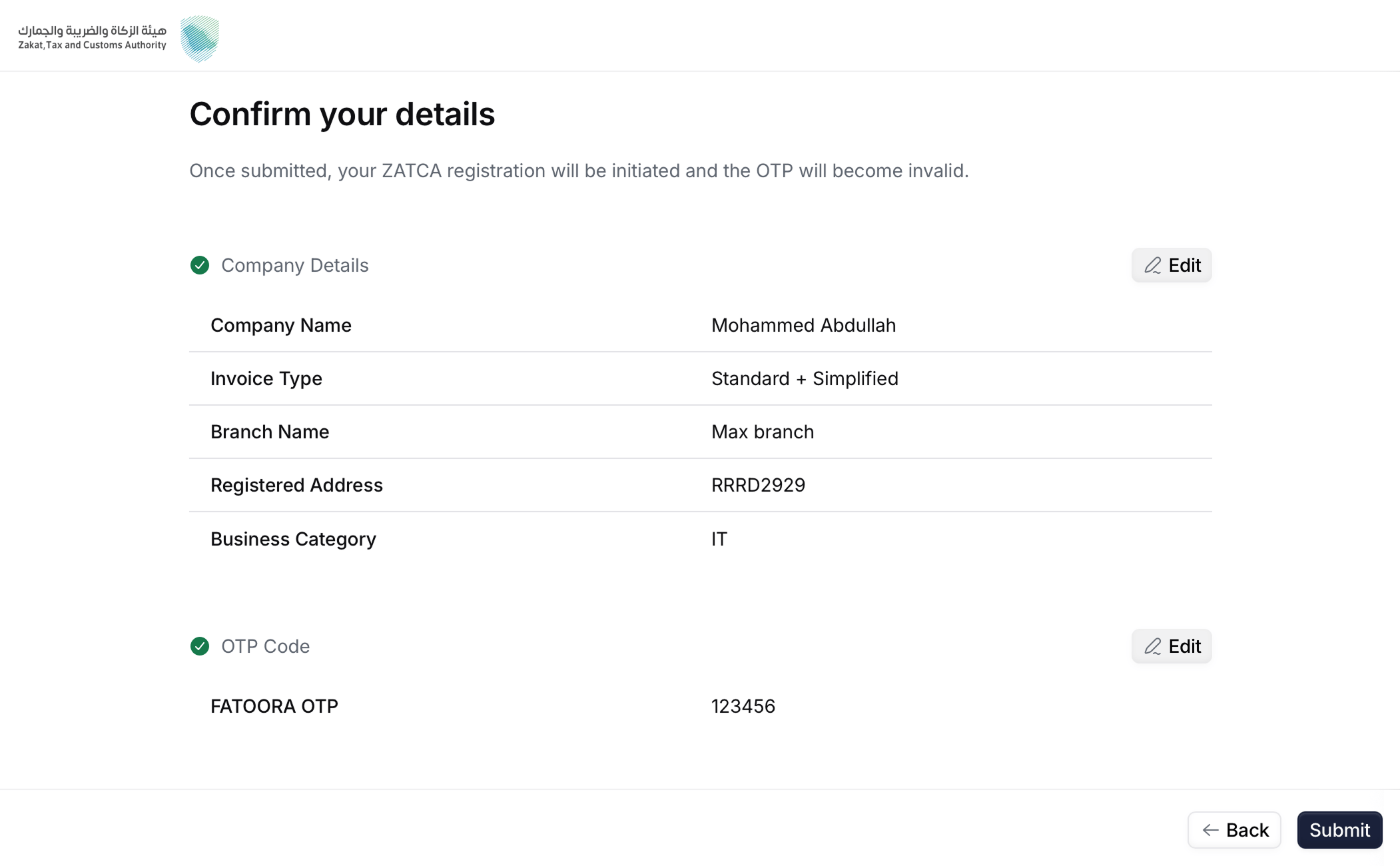
Confirmation screen
5
Submit
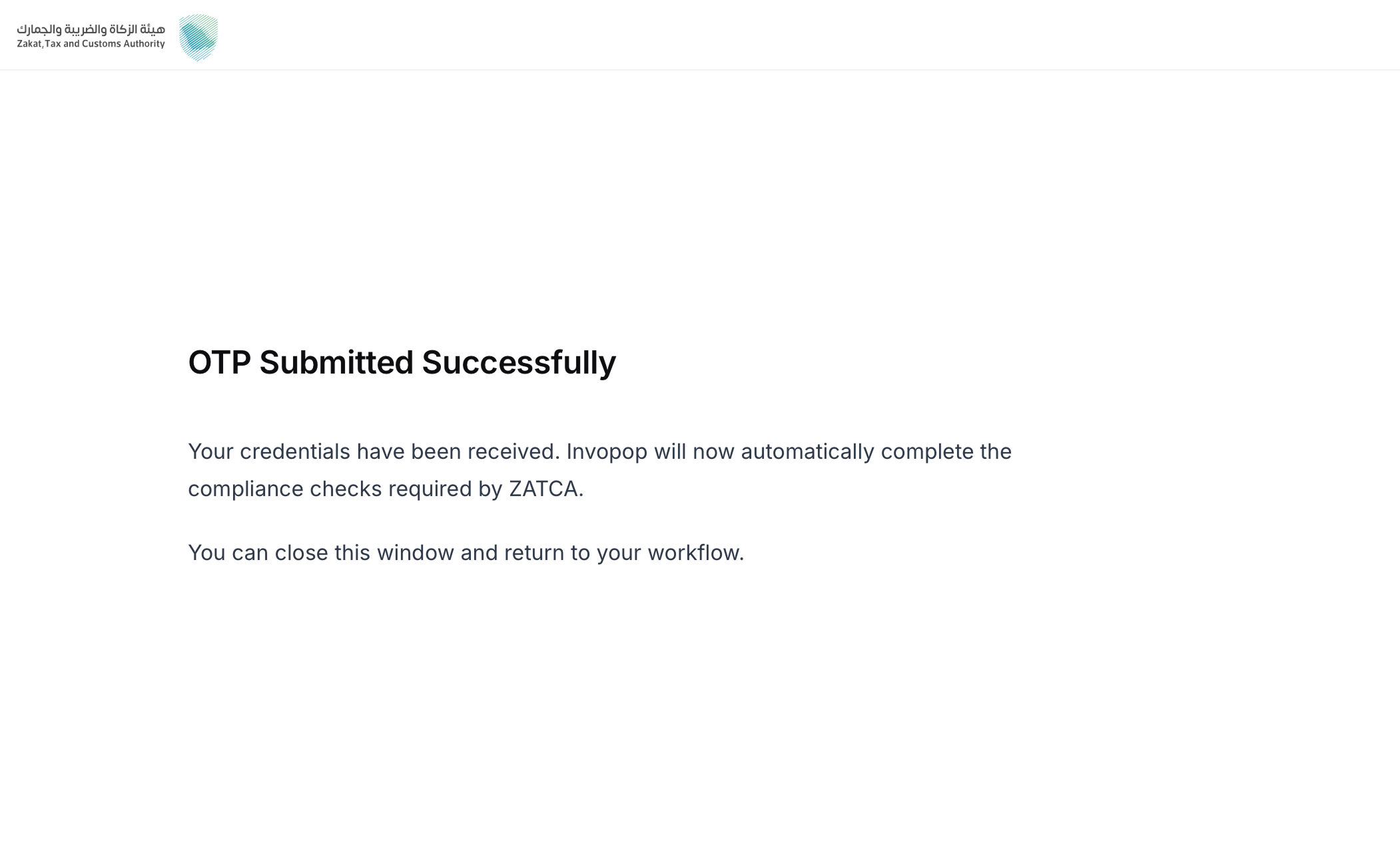
Submission screen
The invoice type chosen here determines which compliance samples Invopop submits:
1000 runs standard tax invoices, credit notes, and debit notes; 0100 runs the simplified equivalents; 1100 runs both sets.Unregistration (sandbox only)
Unregistering a party from ZATCA in production environment is handled by the tax payers, directly in the FATOORA portal, signing in with their own credentials. Invopop also provides an unregister action that removes the party and its stored credentials from Invopop’s internal systems only. It does not touch the party’s registration with ZATCA. It targets a single registration, the one that matches the party’s VAT number and supplier identity, so unregistering one branch leaves the other registrations under the same VAT number untouched.- Template
- Code
ZATCA unregister supplier workflow (sandbox only)
Removes the party’s registration and stored credentials from Invopop’s internal systems.
Multi-branch entities
A business can run several branches that all share the same VAT number while each branch onboards its own device or system. A single VAT number therefore often needs more than one registration, and Invopop supports this through the GOBL identities field. Every party registered with ZATCA is linked to a unique CSID certificate that identifies both its VAT number and its branch. Invopop gives each unique combination of VAT number and supplier identity its own CSID certificate, allowing them to act independently and through their own invoice chain. Set the identity on theorg.Party document as an entry in identities whose type is one of:
FAQ
What do I need to onboard a party with ZATCA?
What do I need to onboard a party with ZATCA?
A workspace with the Saudi Arabia app enabled, and an
org/party (the supplier) carrying:- a Saudi VAT registration number,
- an identity of type
CRN,MOM,MLS,700,SAG, orOTH, and - a complete national address (building number, postal code, district, street, additional street, and country).
1000 standard / 0100 simplified / 1100 both), branch name, registered address, and business category — plus the FATOORA OTP.How long is the OTP valid?
How long is the OTP valid?
1 hour from when it is generated in the FATOORA portal. If it expires, generate a new one and re-enter it in the wizard.
What is the difference between Developer and Simulation sandbox modes?
What is the difference between Developer and Simulation sandbox modes?
In Developer mode the OTP is not validated (any placeholder works) and you can only send invoices from ZATCA’s fixed test VAT
399999999900003. In Simulation mode the OTP must be real and you can send from any registered party.Can I test in Simulation without a real FATOORA account?
Can I test in Simulation without a real FATOORA account?
No. Simulation requires a real FATOORA account and taxpayer to generate a valid OTP. Use Developer mode if you want to test the flow without a real account.
🇸🇦 Invopop resources for Saudi Arabia
🇸🇦 Invopop resources for Saudi Arabia
| Compliance | Invoicing compliance in Saudi Arabia Compliance timeline |
| Apps | Saudi Arabia |
| Guides | Registration Clearance & Reporting |
| FAQ | Saudi Arabia FAQ |
| GOBL | Saudi Arabia Tax Regime ZATCA Addon |
| GitHub | gobl.sa.zatca |


Participate in our community
Ask and answer questions about invoicing in Saudi Arabia →